
Apple iPhones are renowned for their advanced security protocols, ensuring that your personal data remains protected. Unlocking your iPhone is the first step to accessing its myriad features, from messaging and calls to apps and settings. This guide delves into the various methods to unlock an Apple iPhone, presented in English for global users. Whether you're using a passcode, biometric authentication, or dealing with a forgotten password, this article offers clear, step-by-step instructions. Additionally, we'll touch upon carrier unlocking for network-restricted devices. By the end, you'll have a thorough understanding of iPhone unlocking processes, enhancing both convenience and security.

Standard Unlock Methods
Unlocking your iPhone typically involves one of three primary methods: passcode, Touch ID, or Face ID. These are designed for everyday use and provide a balance of security and accessibility.
Using a Passcode The passcode is the most basic form of iPhone security. To unlock your device with a passcode, simply wake the iPhone by pressing the side or home button (depending on the model). The lock screen will appear, displaying a keypad. Enter your numeric or alphanumeric passcode accurately. If correct, the iPhone unlocks immediately, granting full access. It's recommended to use a strong passcode—preferably six digits or more—to thwart unauthorized attempts. You can set or change your passcode via Settings > Face ID & Passcode (or Touch ID & Passcode on older models).

Using Touch ID Touch ID, available on iPhone models with a home button (like iPhone 5s to iPhone 8 Plus and iPhone SE series), uses fingerprint recognition for unlocking. To enable it, register your fingerprint in Settings. Once set up, simply place your registered finger on the home button while the screen is awake. The iPhone scans your fingerprint and unlocks if it matches. Ensure your finger and sensor are clean for optimal performance. Touch ID also works for Apple Pay and app authentications, adding layers of convenience.
Using Face ID Face ID, introduced on iPhone X and later models (including iPad Pro), employs facial recognition technology. To unlock with Face ID, glance at your iPhone when the screen is on. The TrueDepth camera system scans your face, and if recognized, the device unlocks seamlessly. For setup, go to Settings > Face ID & Passcode and follow the prompts. Face ID adapts to changes like glasses or beards, but ensure good lighting and hold the phone at a natural distance. It's a swift, hands-free method that enhances security with advanced algorithms.
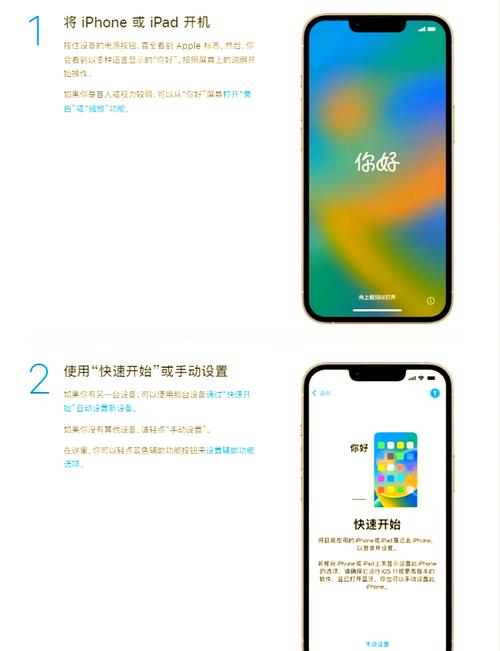
If You Forgot Your Passcode
Forgetting your passcode can be stressful, but Apple provides several recovery options. Note that these methods often involve erasing your iPhone, so regular backups to iCloud or iTunes are crucial.
Recovery via iTunes If you've synced your iPhone with iTunes on a computer before, you can restore it. Connect your iPhone to the computer using a USB cable and open iTunes (or Finder on macOS Catalina or later). Force restart the iPhone: quickly press and release the volume up button, then the volume down button, and hold the side button until recovery mode appears. In iTunes, select "Restore" to erase the iPhone and install the latest iOS. After restoration, you can set up the device as new or from a backup.
Using Recovery Mode If you haven't synced with iTunes, recovery mode is an alternative. Connect your iPhone to a computer and open iTunes or Finder. Force restart the device: for iPhone 8 or later, press and release volume up, then volume down, and hold the side button; for iPhone 7, hold volume down and side buttons; for older models, hold home and side buttons. When the recovery mode screen appears, choose "Restore" in iTunes. This erases all data but allows you to regain access.
Using Find My iPhone If Find My iPhone is enabled, you can erase your device remotely via iCloud. On another device, go to icloud.com/find and sign in with your Apple ID. Select your iPhone from the list and click "Erase iPhone." This removes the passcode and all content. After erasure, you can restore from a backup during setup. This method requires an internet connection on the iPhone and prior activation of Find My iPhone.
Unlocking Carrier-Locked iPhones
Carrier locking restricts an iPhone to a specific network. Unlocking it allows use with any carrier, which is useful for traveling or switching providers.
Contacting Your Carrier The safest way to unlock a carrier-locked iPhone is through your original carrier. Ensure your contract is fulfilled—no outstanding payments or obligations. Contact customer service and request an unlock. They may provide instructions or unlock it remotely. Once approved, back up your iPhone, erase all content via Settings > General > Reset > Erase All Content and Settings, and restore from backup. Insert a new SIM card to confirm unlocking.
Using Third-Party Services If your carrier refuses, third-party unlocking services are available online. Research reputable providers with positive reviews. These services often require your iPhone's IMEI number (found in Settings > General > About or by dialing *#06#). They may charge a fee and take days to process. Be cautious of scams and ensure the service guarantees success. After unlocking, follow similar steps to verify with a different SIM card.
Tips for Secure Unlocking
To maintain security while unlocking your iPhone, follow these best practices:
- Regularly update iOS to patch vulnerabilities.
- Use strong, unique passcodes and enable two-factor authentication for your Apple ID.
- Avoid sharing biometric data or passcodes with others.
- Back up your iPhone frequently to iCloud or computer to prevent data loss during recovery.
- If selling or gifting your iPhone, disable Find My iPhone and perform a factory reset to remove personal data.
FAQs
Q1: What should I do if my Touch ID or Face ID stops working? A1: If Touch ID or Face ID fails, first ensure the sensor or camera is clean and unobstructed. Restart your iPhone, as temporary glitches may cause issues. If problems persist, re-register your fingerprints or face in Settings. For hardware faults, contact Apple Support for diagnostics and repair.
Q2: Can I unlock an iPhone without losing data if I forget the passcode? A2: Unfortunately, if you forget your passcode, there is no way to unlock the iPhone without erasing it, due to Apple's security measures. However, if you have a recent backup in iCloud or iTunes, you can restore your data after the reset. To avoid this, use biometric methods like Touch ID or Face ID for daily unlocking, and keep your passcode in a secure place.








评论列表 (0)